


How to Set Up Noqoody Payments on Your Shopify Store
The Complete Step-by-Step Guide for Qatar E-Commerce Businesses
If you're running a Shopify store in Qatar, you've already figured out the hard truth: the right payment gateway isn't a nice-to-have — it's the difference between a customer completing their order and abandoning their cart at the last second.
The mistake I see repeatedly with Qatari e-commerce stores is over-reliance on international payment processors. They function technically. But they don't carry the same weight with local shoppers. Qatari customers know Noqoody. They see the QCB-licensed badge and they trust it. When that trust signal appears at your checkout, hesitation drops — and conversion rates climb.
Here's what makes this integration different from any other gateway you could add to Shopify: Noqoody is not a global platform adapted for Qatar. It is Qatar's own QCB-licensed Payment Service Provider, built from the ground up for this market, supporting every payment method your customers actually use — from Visa and Mastercard to QPay2, Apple Pay, FAWRAN QR, and Ooredoo Money — all under one regulated, locally accountable roof.
The even better news: getting Noqoody live on your Shopify store requires no developer, no complex backend work, and no weeks of waiting. If you follow each step in this guide in order, you'll have Noqoody active at your checkout by the end of today.
What You Need Before Installing the Noqoody Shopify Integration
Getting the integration right starts before you touch Shopify. Two things need to be in place first — and skipping either one is what causes most setup failures.
First, your Noqoody merchant account must be API-enabled. Log in to your Noqoody merchant portal, navigate to Profile, then Account Settings, and look for your Client Key and Secret Key. If they're not visible, your account hasn't been enabled for API access yet. Contact Noqoody's merchant support team directly — they're based in Doha and resolve this quickly, typically within one business day.
Second, your Shopify store must be on an upgradable plan. Shopify's entry-level Starter plan does not support third-party payment integrations. If you haven't reviewed your plan recently, now is the right time. Also note that Shopify charges transaction fees on orders processed through external gateways — the rate varies by plan, so check your current tier.
Think of this section as the five-minute check that saves you an hour of troubleshooting later. Once both boxes are ticked, the actual installation is clean and straightforward — exactly what the next section walks you through.
How to Integrate Noqoody with Shopify: The Full Setup Walk-Through
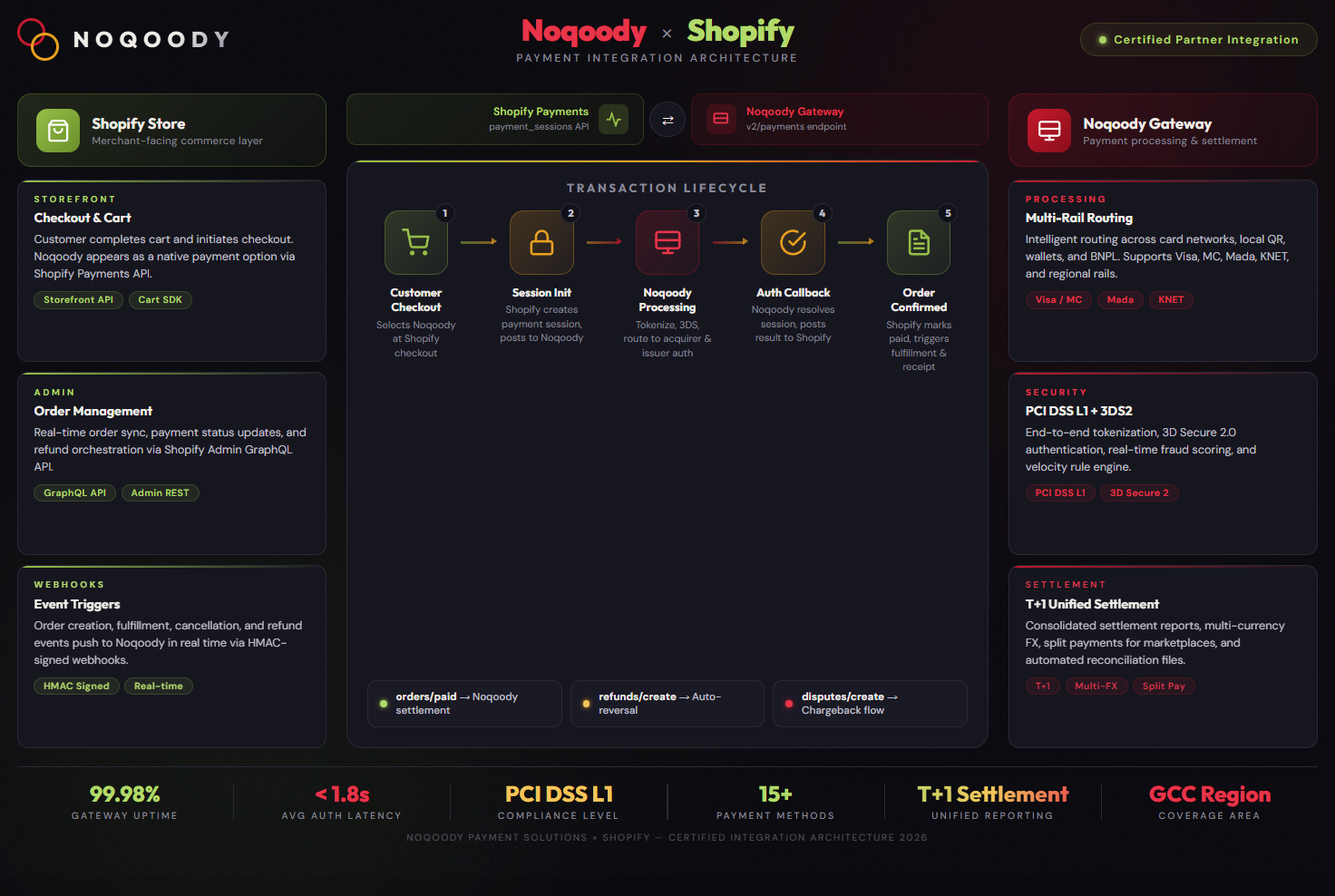
Step 1: Install the Noqoody App on Your Shopify Store
With your API keys ready and your Shopify plan confirmed, the installation itself takes under two minutes.
Visit the Shopify App Store and search for the Noqoody Payment Gateway application. Once you're on the app listing page, click "Add app."
Shopify will redirect you to a standard permissions confirmation screen — this is Shopify's normal handoff before any app accesses your store. Review the permissions being requested (a good habit with any payment integration), then click "Install app" to complete the installation.
You'll land on the Noqoody–Shopify management page immediately after, where the real configuration begins.
One thing worth doing here that most merchants skip: spend thirty seconds reading what the app is requesting access to. Knowing what your payment gateway can see in your store gives you a cleaner picture of your overall payment setup — and it's simply good practice when you're connecting any financial integration to your business.
Step 2: Connect Your Noqoody Merchant Account to Shopify
You're now on the Noqoody manage page inside your Shopify admin. This is where merchants either get it right in five minutes — or spend an hour wondering why nothing is working.
Log in to your Noqoody merchant portal, go to Profile → Account Settings, and copy your Client Key and Secret Key. Paste both into the corresponding fields on the Noqoody manage page inside Shopify.
Before you click anything else, find the Sandbox Mode toggle and confirm it is switched OFF.
This is the single most common configuration mistake — and it's a costly one. Sandbox mode does not simulate test transactions the way most merchants assume. What it actually does is tag your live Shopify orders as test orders, creating a reconciliation problem you absolutely do not want to untangle after hundreds of real transactions have passed through. Turn it off before proceeding.
Once confirmed, click "Connect Account." Shopify will automatically redirect you back to your store admin.
It's a simple screen — but these details are what separate a clean payment integration from one that surfaces problems at the worst possible moment.
Step 3: Activate Noqoody as a Live Payment Method
Being redirected back to your Shopify admin means the connection worked. Now you make it live for your customers.
You'll see a screen prompting you to select which payment method icons to display at your checkout. This matters more than it looks. Choose the icons that reflect how your Qatar customers actually pay:
✅ Visa & Mastercard (credit and debit)
✅ QPay / NAPS — Qatar's national payment scheme
✅ Apple Pay — now nearly 40% of Qatar's contactless transactions
✅ FAWRAN QR — the QCB's instant payment infrastructure
✅ Ooredoo Money
✅ WPS Cards
Displaying familiar, locally recognized payment icons at checkout is a proven trust signal. Research consistently shows that unfamiliar checkout experiences are one of the leading causes of cart abandonment — and in Qatar's market, local recognition carries real commercial weight.
Once you've selected your icons, confirm the Test Mode checkbox is unchecked, then click "Activate Noqoody Payments."
Go to Settings → Payments in your Shopify admin. You'll see Noqoody listed as an active payment method. If it appears there, your integration is live and your store is ready to process real transactions through Qatar's QCB-licensed Payment Service Provider.
What Your Customers Actually See at Checkout
Activating the integration is one thing. Understanding what it delivers to your customer's experience is what makes it worth doing properly.
When a shopper reaches your Shopify checkout, Noqoody appears as the payment option — not a foreign processor they've never heard of, but a gateway they recognize as locally licensed, locally operated, and built specifically for Qatar.
For your Qatari customers, this recognition matters commercially. They're not being handed off to an international platform where their card data routes through servers in another country. They're paying through a gateway directly licensed by the Qatar Central Bank, operating under full QCB Payment Services Regulation compliance, with merchant fund protection enforced by local law.
That familiarity reduces the hesitation that quietly costs Qatar e-commerce businesses real revenue at the very last step of their funnel.
One technical detail to configure on your end before going live:
Noqoody requires both email address and phone number to be mandatory fields at checkout — not optional. Go to Settings → Checkout in your Shopify admin and confirm both fields are set to required.
If either is set to optional, Noqoody will return a transaction error at the payment step — a frustrating experience for a customer who is already committed to buying. It's a thirty-second fix. Do it now, before your first transaction.
Common Noqoody Shopify Setup Issues — And How to Fix Them Fast
Most setup problems with this integration trace back to one of three causes. None of them require a developer.
Issue 1: API Keys Not Showing in Your Noqoody Account If your Client Key and Secret Key aren't visible under your Noqoody merchant profile, your account hasn't been enabled for API access yet. This isn't an error — it's a permission that needs to be switched on. Contact Noqoody's merchant support team in Doha directly. They enable API access quickly and can walk you through the configuration if needed.
Issue 2: Sandbox Mode Left On After Configuration As covered in Step 2, this doesn't run test payments — it tags real customer orders as test orders. If your integration looks active but transactions are behaving incorrectly or not settling, Sandbox Mode being left on is the first thing to check. Switch it off and retest.
Issue 3: Shopify Plan Not Supporting Third-Party Integrations If the Noqoody app isn't installing correctly or the payment method won't activate, confirm you're on an upgradable Shopify plan. The Starter plan blocks third-party gateway integrations — this is a Shopify-side limitation that requires a plan upgrade to resolve.
Issue 4: Checkout Fields Set to Optional This one is silent — it doesn't break the integration visually, but it fails exactly when a customer tries to pay. Email and phone number must both be set to required in your checkout settings. Check this before going live.
Good troubleshooting is knowing where to look first. For this integration, the list is short — and every issue on it has a straightforward fix.
Beyond Checkout: What Noqoody's Platform Can Do for Your Shopify Business
Most merchants think of a payment gateway as a checkout tool. Noqoody is significantly more than that.
Once your Shopify integration is live, you have access to the full Noqoody merchant platform:
Unified Merchant Dashboard Every transaction — online and in-store — visible in real time. Monitor sales by channel, by payment method, by time period. No end-of-day exports. No manual reconciliation.
POS Acquiring for Physical Locations If your Shopify store has a physical retail presence, Noqoody's QCB license covers POS acquiring as well. One merchant account. One settlement. One dashboard across your online and offline channels.
Payment Links Send a Noqoody-powered payment link via WhatsApp or SMS for phone orders, custom B2B invoices, or any transaction that happens outside the standard checkout flow.
Real Estate & High-Value Collections If your Shopify store handles high-value transactions — furniture, luxury goods, property-related services — Noqoody's sector-specific MDR rates for high-value transactions can materially reduce your per-transaction cost compared to standard card rates.
Full QCB Regulatory Coverage Every transaction processed through Noqoody is covered by QCB's Payment Services Regulation. Merchant funds are held in regulated accounts. Settlement timelines are governed by law. Your revenue is protected — not subject to a foreign company's internal policies.
Start Accepting Payments on Your Shopify Store Today
If you've followed each step in this guide, your Shopify store is now connected to Qatar's QCB-licensed Payment Service Provider — built specifically for this market and covering every payment method your customers use.
That's not a small achievement. Many Qatari e-commerce businesses are still running on international processors that work technically but carry none of the local trust, regulatory protection, or market-specific coverage that Noqoody delivers.
Adding Noqoody to your checkout isn't just activating a payment option. It's a signal to every customer who lands on your store that you've built your business on Qatar's own regulated payment infrastructure — and that their money, their data, and their experience are in accountable hands.
The integration we walked through here is also just the starting point. From POS terminals to payment links, from real estate collections to FAWRAN instant payments — Noqoody's platform is built to scale with your business as it grows.
Ready to get started? Visit www.noqoody.com or contact Noqoody's merchant team in Doha to activate your account, enable API access, and get your Shopify integration live today.
Noqoody Payment Services W.L.L. — QCB Licensed Payment Service Provider | Online Gateway & POS Acquiring | Qatar's Payment Infrastructure for Business www.noqoody.com